
A thumbnail is the small image people see before they decide whether to click your video. On YouTube, your thumbnail and your title work as one unit: the title says what the video is about, and the thumbnail shows why it is worth watching. If either one is unclear, most people scroll past.
The short answer: make an image that is 1280 by 720 pixels or larger, in the 16:9 shape, with three to five big words, one clear face or object, and strong contrast. Then upload it in YouTube Studio and check its click-through rate in Analytics. This guide shows each step in Canva on the free plan, five layouts you can copy, and the mistakes that quietly kill clicks.
What a thumbnail actually does
When your video appears on the home page or in search results, YouTube counts an impression each time your thumbnail is shown for more than one second with at least half of it visible. The impressions click-through rate, or CTR, is how often people watched the video after seeing that thumbnail. You can find both numbers in YouTube Studio, under Analytics and then the Reach tab.
YouTube says half of all channels and videos have an impressions CTR between 2% and 10%. Treat that as context, not a target. CTR changes with the traffic source: people searching for a specific answer click differently from people browsing the home page. The useful comparison is your own videos against each other over time, not your channel against someone else’s.
A thumbnail can only win the click. What happens after the click depends on the video itself. That is why this guide never promises views or subscribers from a thumbnail alone. A clear thumbnail plus an honest video is the combination that holds up.
The size and format rules
YouTube’s own help page gives the current rules, checked on 25 November 2026. Note that two numbers changed during 2026: the recommended resolution is now 3840 by 2160, and the file limit is now 50 MB. Many older tutorials still quote 1280 by 720 and 2 MB. Both of those still work, but they are no longer the recommendation.
| Item | What YouTube asks for |
|---|---|
| Resolution for videos | 3840 x 2160 pixels; minimum width 640 pixels |
| Resolution for Shorts | 2160 x 3840 pixels; minimum height 640 pixels |
| Aspect ratio | 16:9 for videos; 9:16 for Shorts |
| File format | JPG or PNG |
| File size | Under 50 MB on desktop; on mobile, 50 MB for video thumbnails and 10 MB for podcasts |
| Account | Your channel must be verified to upload a custom thumbnail |
| Daily limit | YouTube limits how many custom thumbnails a channel can upload per day; if you see “Daily custom thumbnail limit reached”, try again in 24 hours |
One practical note: Canva’s ready-made YouTube Thumbnail design opens at 1280 by 720. That size still uploads and is above the 640-pixel minimum, so your old thumbnails do not need remaking. But for a new thumbnail, start from a custom size of 3840 by 2160 instead. It costs nothing extra on the free plan, and it keeps your image sharp on large screens and inside YouTube’s thumbnail tests.
Before you open Canva: pick one idea
A thumbnail fails when it tries to say everything. Pick one idea per thumbnail: the one thing a viewer will learn, see, or feel after watching. Then check that your title says the same thing in different words. If the thumbnail promises a recipe and the video is a vlog, viewers leave fast, and that hurts the video more than a plain thumbnail would.
Answer three questions before you design anything. First, what is the video’s one promise? Second, who is it for, in one phrase? Third, what will the viewer see in the first 30 seconds that proves the promise? If you cannot answer the third question, fix the video plan first. No thumbnail can save a video that does not deliver.
Also remember the policy side. Thumbnails must follow YouTube’s Community Guidelines. A thumbnail that misleads people about what the video contains can be rejected, and serious violations can lead to a strike on the channel. Honest curiosity is fine. A promise the video does not keep is not.
Make your first thumbnail in Canva, step by step
You do not need Canva Pro for this. The free plan covers the YouTube Thumbnail design type, custom sizes, free templates, and JPG download. The one-click Resize tool and the Background Remover are Pro features, and premium templates and elements carry a small crown mark. Everything below works on the free plan.
- Open Canva and search for “YouTube Thumbnail”, or choose Create a design and then Custom size, and type 3840 in the width box and 2160 in the height box, in pixels.
- Pick a background. The simplest reliable choice is a still frame from your own video, uploaded to Canva. A plain colour or a simple two-colour background also works when the video has no strong frame.
- Add one short headline of three to five words. Use the Text tool, pick a bold font, and make the text large enough to read when the image is the size of a postage stamp.
- Put one main subject on one side: your face, the finished dish, the repaired phone, the notebook. Leave the other side for the text. Two subjects compete; one subject wins.
- Fix the contrast. Light text needs a dark background or a dark shadow behind it; dark text needs a light background. If you cannot read the words at a glance, change the colours, not the font.
- Keep the corners and edges clear. YouTube places a duration badge over the bottom-right corner, and the image is cropped slightly on some screens. Keep text and faces away from the edges.
- Do the phone test. Shrink the design until it is about 120 pixels wide, or open it on your phone. If you can still read the words and tell what the picture is, it passes. If not, remove words before you add anything.
- Download it. Choose Share, then Download, then JPG. JPG keeps the file small; PNG is better only when the design is mostly flat colour and sharp text. Check the file is under 50 MB before you upload it to YouTube.
Five thumbnail layouts beginners can copy
You do not need a new idea for every video. Pick one layout, use it for a few videos, and change it only when the numbers tell you to. These five cover most beginner videos.
| Layout | Best for | Recipe |
|---|---|---|
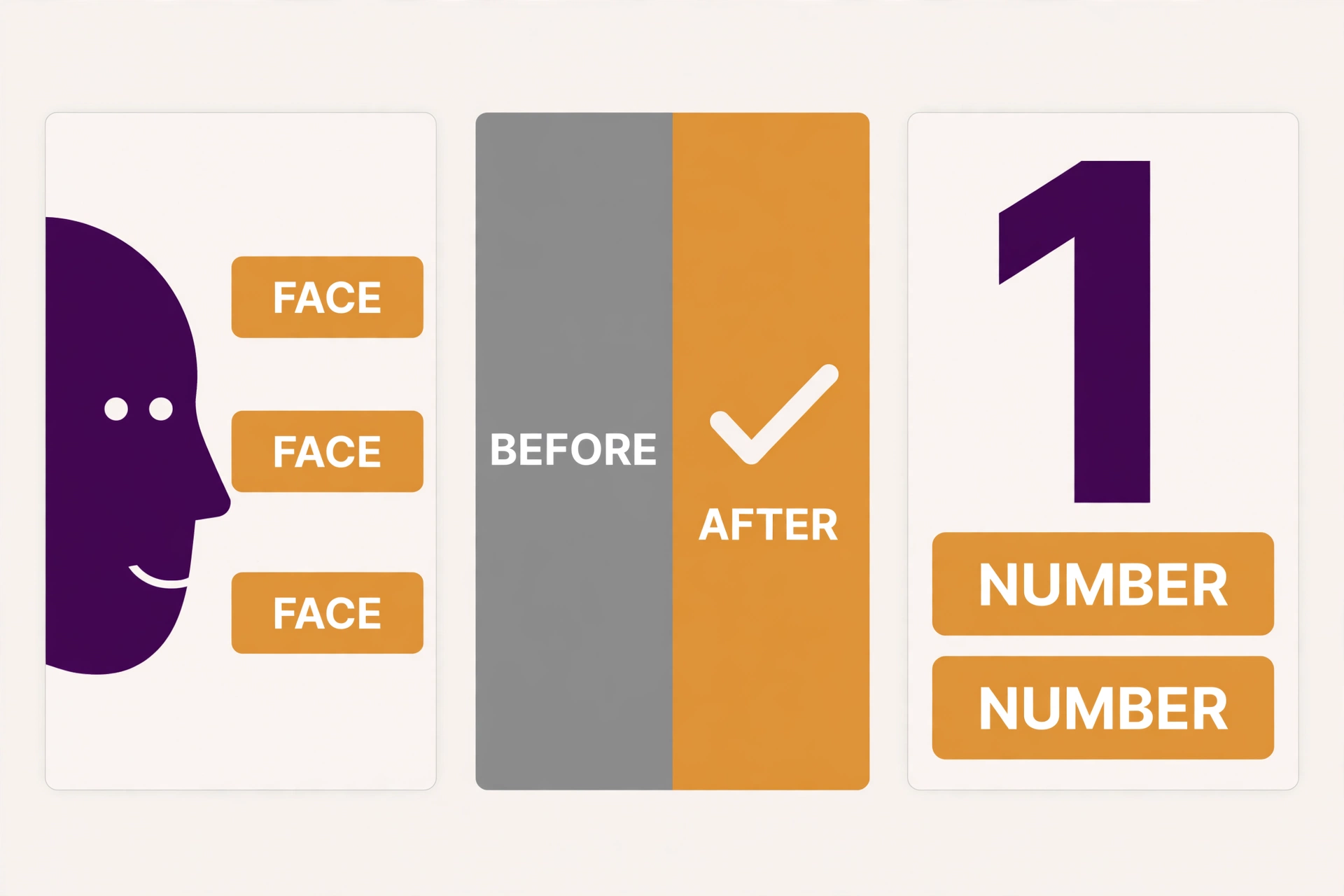
| Big face plus three words | Vlogs, reactions, personal stories | One face, large, on the left or right; three bold words on the other side; one strong background colour |
| Before and after split | Tutorials, makeovers, repairs, fitness | Left half shows the “before” state, right half shows the “after” state; a thin line down the middle; two or three words only |
| The numbered list | How-to videos, tips, mistakes | A still from the video as the background; a large number, such as “5”, plus two or three words; keep the rest of the space empty |
| The question | Explainers, opinions, comparisons | The question itself as the text, in five words or fewer; one image that shows the topic; no answer in the thumbnail |
| The result on display | Cooking, crafts, study setups, tech | The finished result fills most of the frame; no face needed; two or three words naming the result |
Three mistakes that kill clicks
| Mistake | Why it hurts | What to do instead |
|---|---|---|
| Twelve words on one thumbnail | At phone size the words become grey texture nobody can read | Cut the text to three to five words and move the rest into the title |
| Pale text on a busy photo | The eye cannot separate the words from the background | Put a solid colour panel or a dark shadow behind the text, or pick a plainer background |
| A promise the video does not keep | Viewers click, leave in seconds, and stop trusting the channel; misleading thumbnails can also break YouTube’s rules | Promise only what the first 30 seconds of the video actually shows |
A worked example
This is a hypothetical example to show the method. The person is fictional and the numbers are illustrative, not a result.
Rohan is a college student in Indore who makes study-tips videos for Class 10 students. His video is about a 7-day revision plan before board exams. His first thumbnail had twelve words, a screenshot of his timetable, and a pale yellow font on a white background. At phone size, nothing was readable.
He remade it with the numbered-list layout: a photo of his desk with the revision plan open, a large “7” on the left, and the words “7-Day Revision Plan” on the right in white bold text with a dark shadow. The title stayed “7-Day Revision Plan for Class 10 Board Exams”. The thumbnail and the title now make the same promise, and the first 30 seconds of the video show the plan itself. That is the whole method: one promise, readable at phone size, kept by the video.
Upload it and test it in YouTube Studio
Open YouTube Studio, go to Content, open the video, and under Thumbnail choose Upload file. Select your image and click Save. YouTube may take some time to show the new thumbnail everywhere.
To test thumbnails properly, use YouTube’s Test and Compare tool. In YouTube Studio on a computer, open the video, and under Thumbnail choose A/B Testing. You can test up to three thumbnails, or three titles, or three combinations. YouTube shows each version to different viewers and, at the end of the test, shows the version with the highest watch time to everyone. A test can take a few days to up to two weeks. It needs advanced features enabled, and it does not work for Shorts, private videos, videos made for kids, or age-restricted videos. One detail matters: if any thumbnail in the test is smaller than 1280 by 720, YouTube downscales every thumbnail in the test to 854 by 480, so design all three at the same high resolution.
After a week, check the Reach tab in Analytics for that video. Look at impressions and impressions CTR together: a thumbnail with high impressions and low CTR is being shown but not chosen, while a thumbnail with low impressions is a different problem, usually the topic or the title, not the design.
The 10-point checklist before you upload
- The image is 3840 by 2160, or at least 1280 by 720, in 16:9.
- The file is a JPG or PNG under 50 MB.
- The text is three to five words, in a bold font.
- The words are readable at 120 pixels wide.
- The text and the face are clear of the corners and edges.
- The thumbnail and the title make the same promise.
- The video delivers that promise in the first 30 seconds.
- Nothing in the thumbnail misleads the viewer about the video.
- The background is your own image or a free Canva element, not someone else’s thumbnail.
- The file name says what the image is, such as “7-day-revision-plan-thumbnail.jpg”.
Common questions
Do I need Canva Pro to make a good thumbnail?
No. The free plan covers the YouTube Thumbnail design type, custom sizes, free templates, and JPG download. Pro adds the one-click Resize tool, the Background Remover, and premium templates and elements. None of those is needed for a clear thumbnail.
Can I reuse the same thumbnail for two videos?
You can, but it is a bad idea. Viewers who saw the first video will think they have already watched the second one, and the thumbnail no longer describes the video it sits on. Make one thumbnail per video, even if you reuse the same layout.
Why is the “Upload thumbnail” button missing?
Your channel is probably not verified. Custom thumbnails need a verified account. In YouTube Studio, go to Settings, then Channel, then Feature eligibility, and verify with a phone number. The option appears once verification is done.
Will a better thumbnail guarantee more views?
No. A better thumbnail can raise the share of people who click, but YouTube also weighs the video itself, the topic, and the title. No thumbnail style guarantees views, clicks, or subscribers. Test, compare, and keep the version that earns more watch time.
What happens if my thumbnail is rejected?
YouTube can reject a thumbnail that breaks its Community Guidelines, and serious cases can lead to a strike. Replace the thumbnail with one that follows the rules. If you think a strike was a mistake, you can appeal it from the alert in Channel Settings.
What to learn next
A thumbnail is one part of a channel that grows. Start with the full picture in the YouTube channel monetization roadmap for India. Then work through the 90-day plan to reach your first 1,000 subscribers, learn how to complete 4,000 watch hours, and choose a YouTube niche that makes thumbnail ideas easier. When the clicks arrive, it helps to know how much YouTube pays per 1,000 views in India.
If you want a structured way to learn these skills, Padhaku‘s Skill Seeker program covers the practical skills behind a channel, from planning a video to publishing it well: https://padhaku.in/skillseeker/
About Padhaku
Padhaku is an India-focused digital skills learning platform founded by Anubhav Shukla. It focuses on making practical digital education more accessible to learners. You can explore the platform at padhaku.in.
Sources and further reading
- YouTube Help, “Add custom thumbnails on YouTube”, checked 25 November 2026: support.google.com thumbnail guide
- YouTube Help, “A/B test titles and thumbnails”, checked 25 November 2026: support.google.com A/B testing guide
- YouTube Help, “Decoding CTR and impressions in your Analytics”, checked 25 November 2026: support.google.com CTR guide
- Canva resize guides checked 25 November 2026 for the free custom-size method and the Pro-only Resize tool: printed.com Canva resize guide and carouselstudio.design Canva resize guide